Keep your icons looking sharp and visually consistent with Typeset's icon tools.
Typeset gives you access to thousands of icons from the Noun Project, with built-in style consistency features that ensure every icon in your document looks like it belongs. Whether you're searching manually or letting AI generate content for you, Typeset automatically filters icon results by style and line weight so your visuals stay cohesive.
By default, all icon searches and AI-generated content use an Outlined style with Medium line weight. You can customize this in your document settings to match your design preferences.
Searching for Icons
To add an icon to your document, click the icon picker in the Typeset editor. Type a keyword into the search bar to browse available icons.
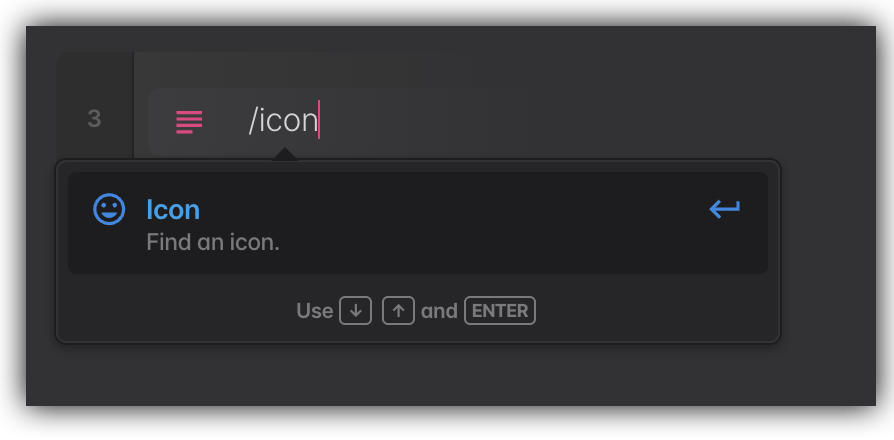
Once you have done that, search for a type of icon you would like.
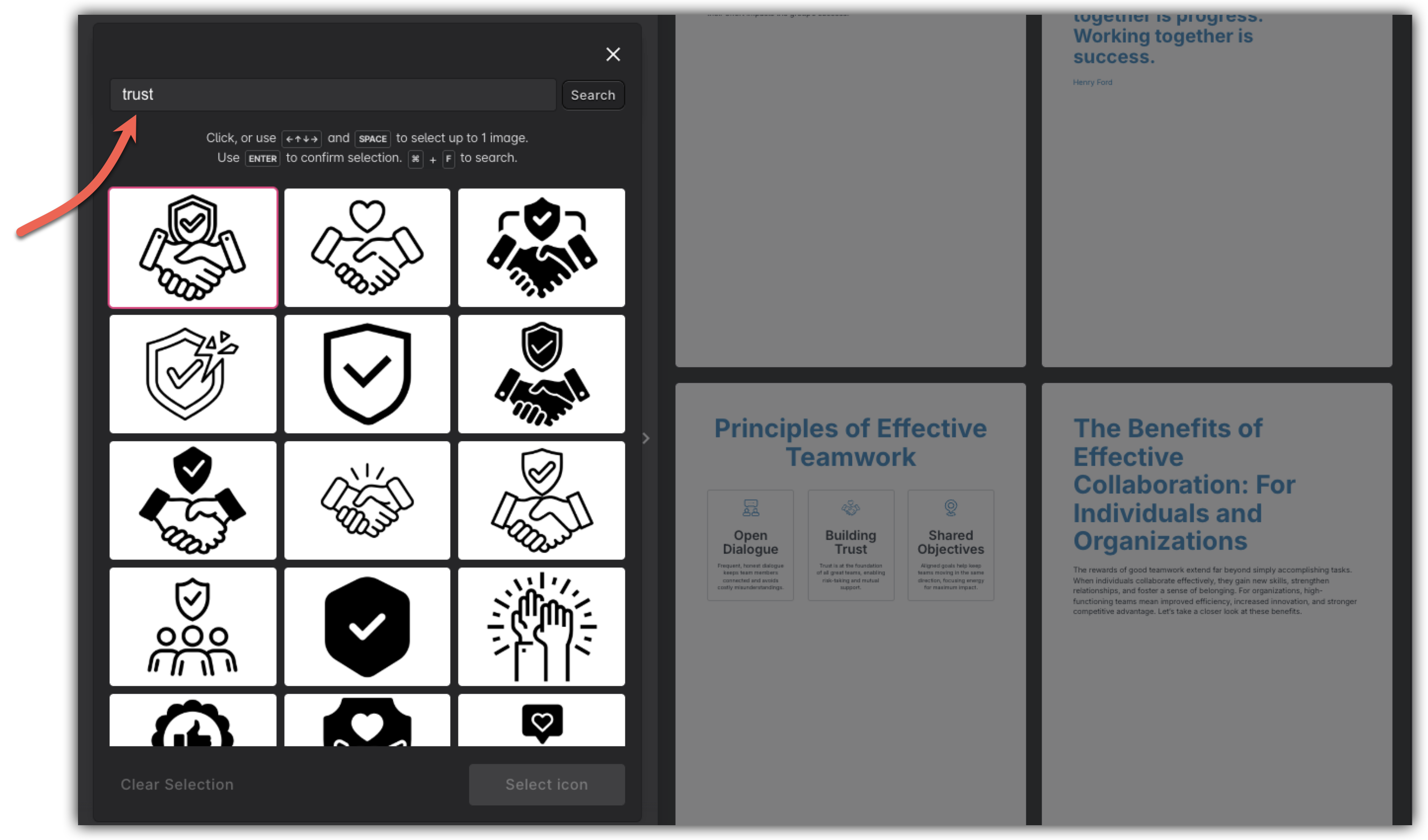
Results are automatically filtered by your document's icon style preference, so you'll see icons that visually match each other rather than a mix of different styles.
Adding an Icon to Your Document
Click any icon in the search results to add it to your document. Typeset will insert it at your cursor position.
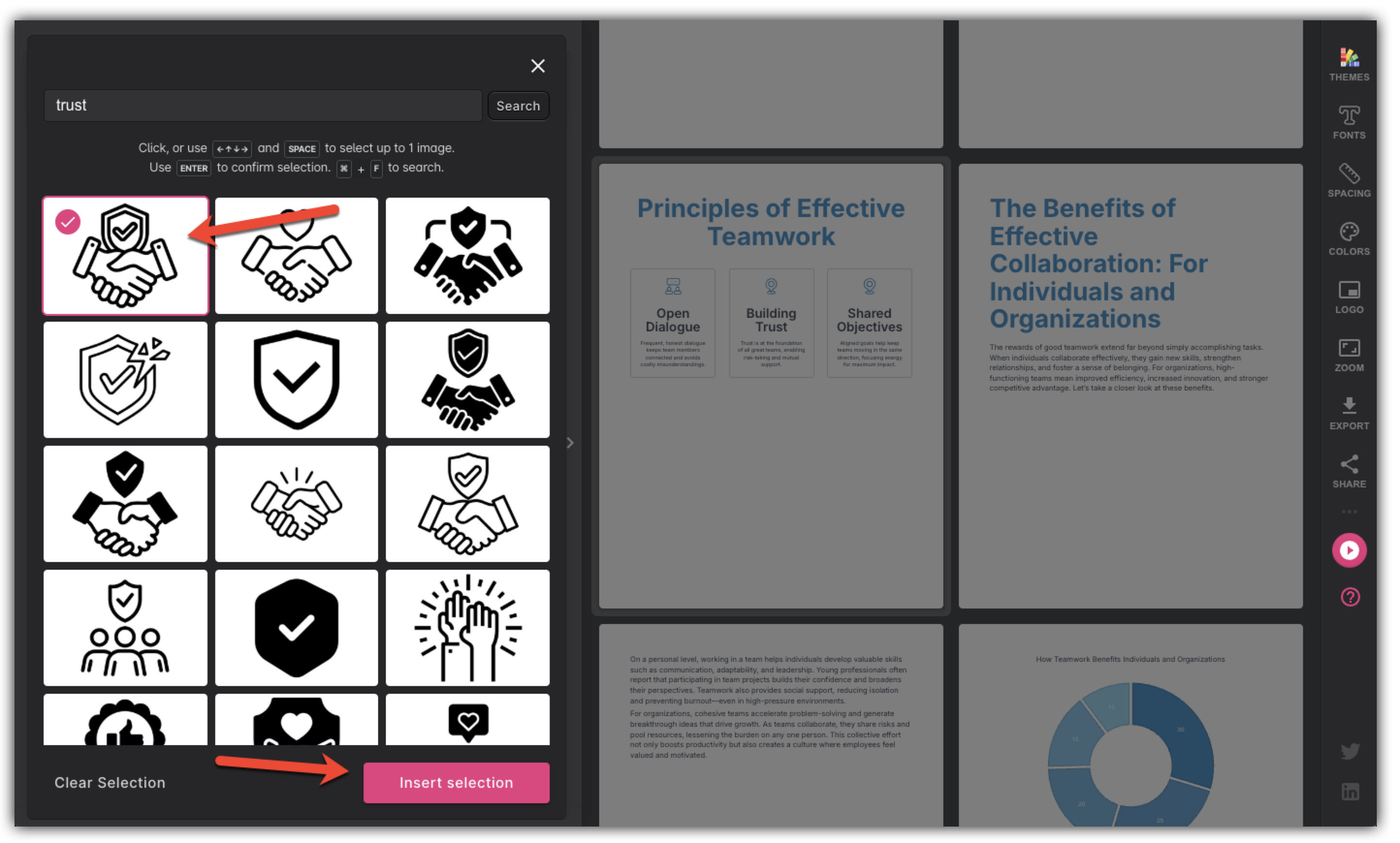
Exploring Icons from the Same Collection
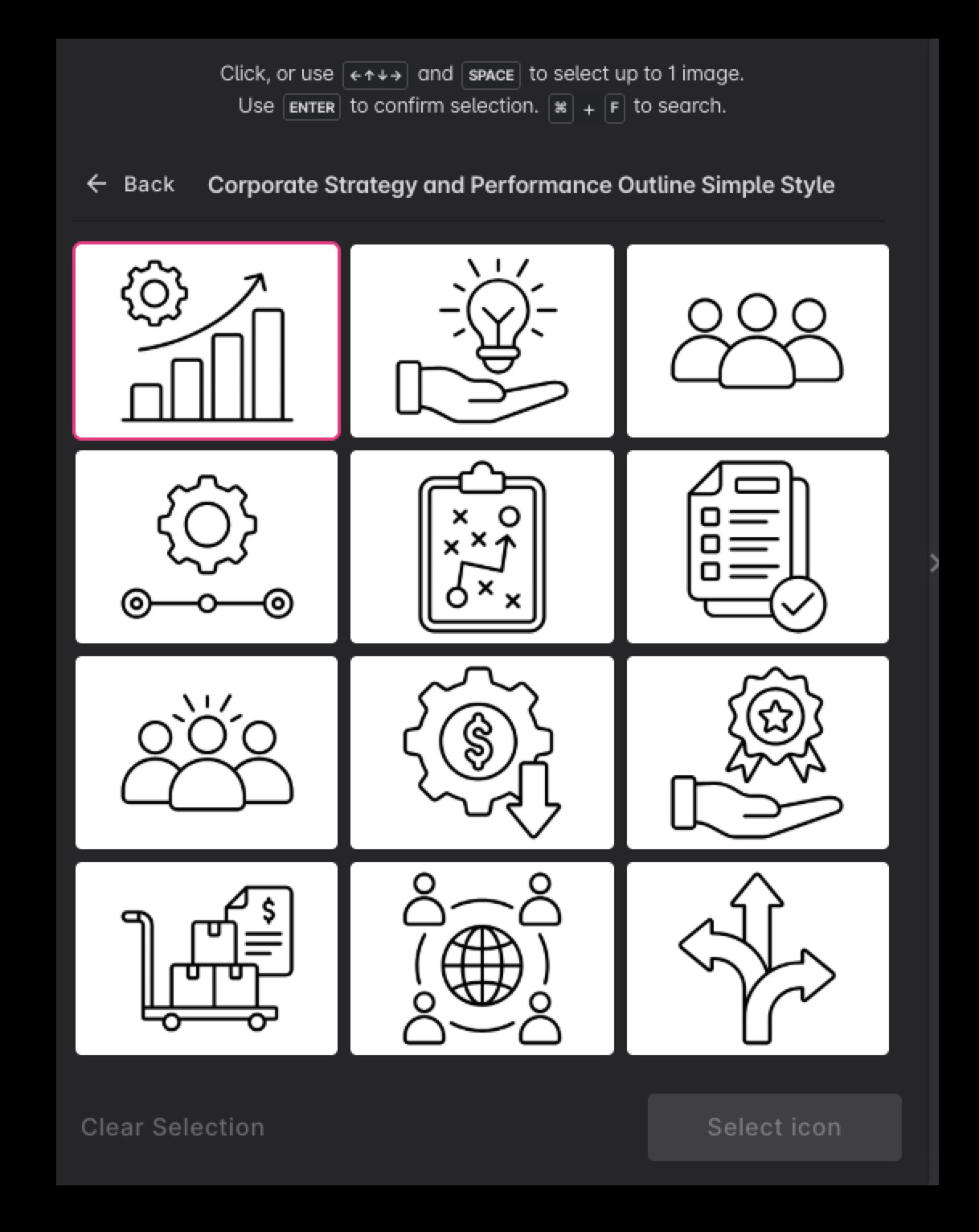
After adding an icon, you'll see a More from this collection button in the icon picker. Clicking this shows you other icons from the same Noun Project collection — icons that are designed to match each other in style and visual weight.
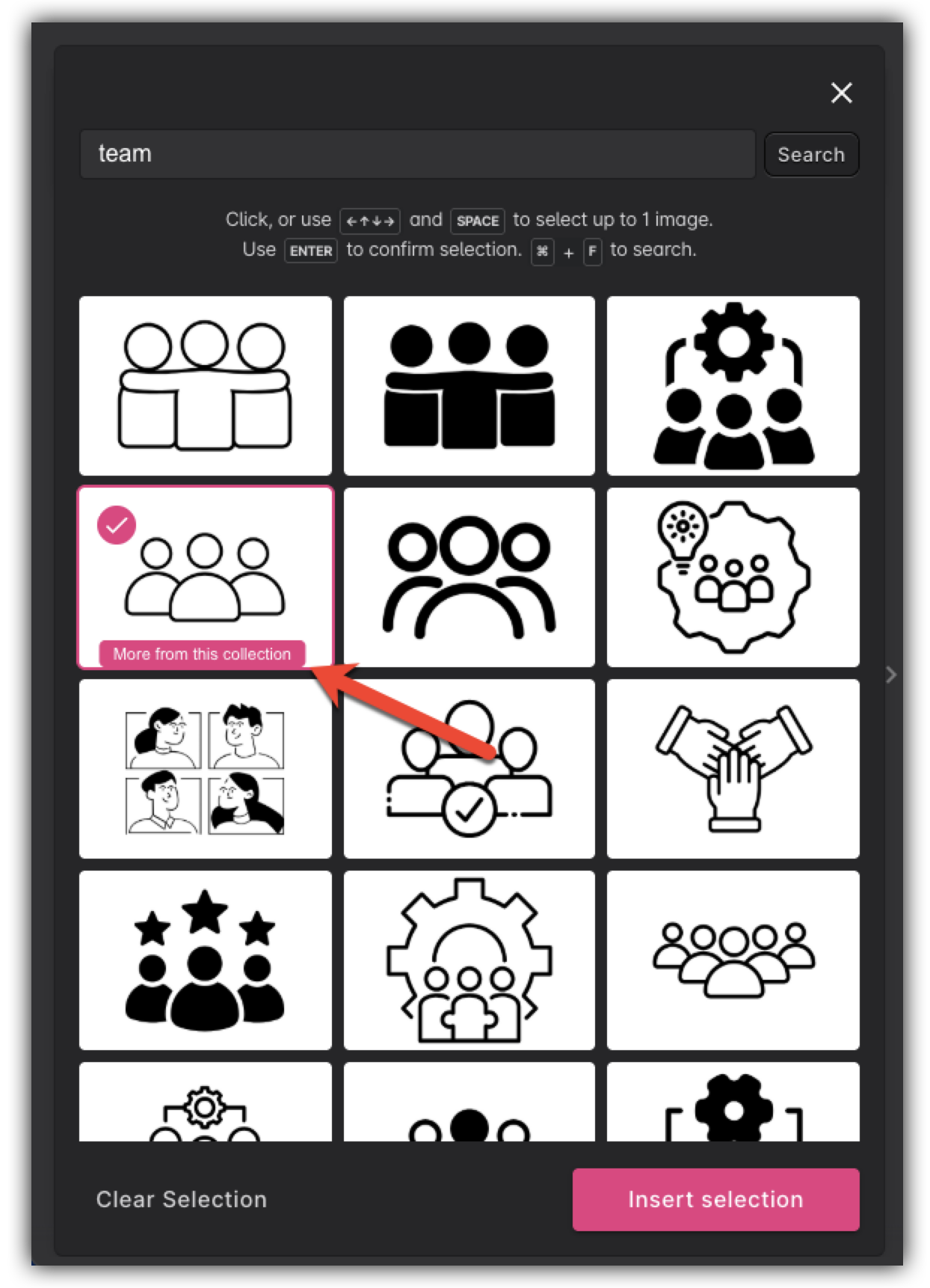
This is useful when you want a set of thematically consistent icons, such as a group of sports icons or business icons that all look like they belong together.
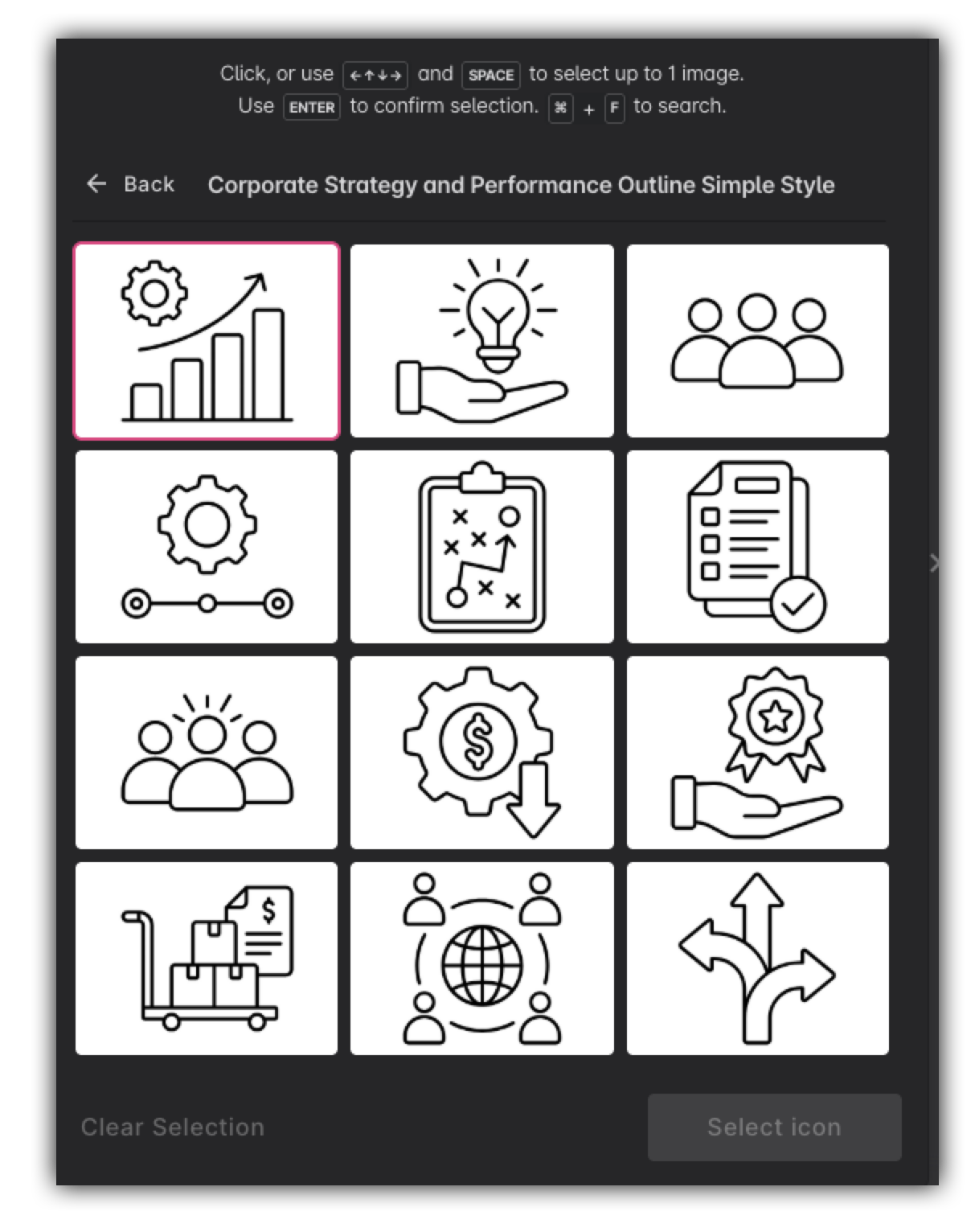
To go back to your general search results, click the back arrow in the icon picker.
Setting Your Icon Style Preference
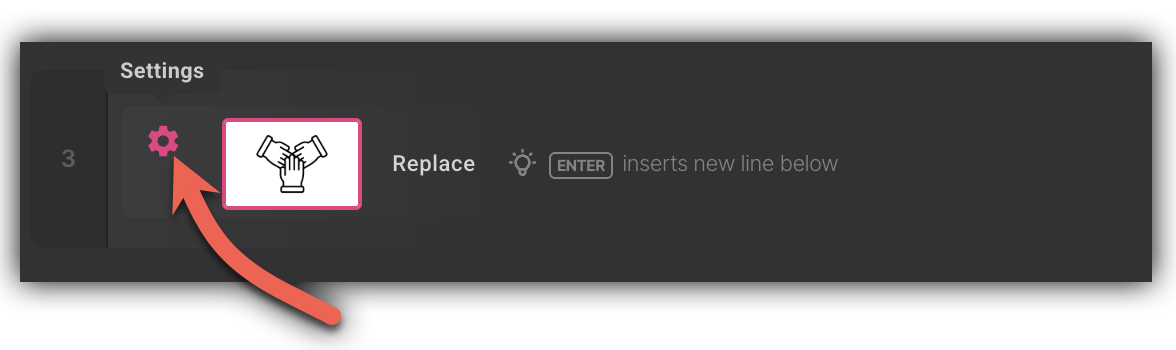
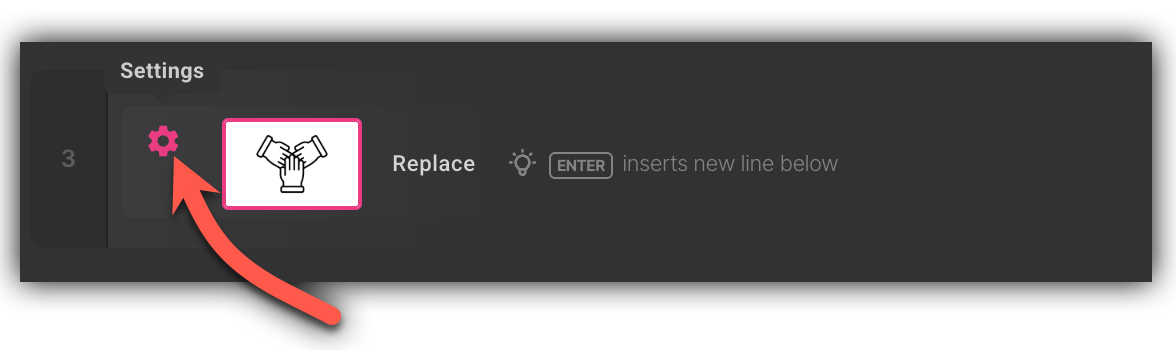
You can control the settings of that icon by clicking the gear symbol.
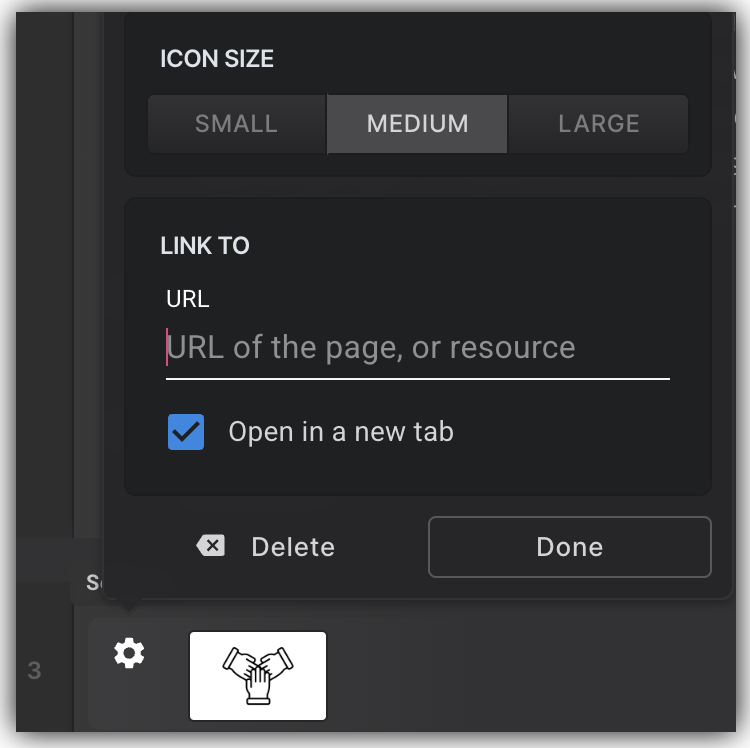
From there you can edit the Icon's size to Small, Medium, Large. You can also add a hyperlink URL to the Icon. Choose to have the link open in a new tab - if you would like!
Icons in AI-Generated Content
When Typeset's AI generates content that includes icons, it automatically uses your document's icon style preference so all icons in a generation match each other visually.
If no style preference has been set, AI defaults to Outlined style with Medium line weight.

Icons in Co-Author
CoAuthor now automatically adds icons to your generated pages for more visually engaging ebooks and slide decks.
When you prompt CoAuthor to generate content that benefits from icons — like feature lists, process steps, or benefit highlights — the AI intelligently selects icons that match your content and style, dropping them directly into your page as fully editable components. No manual editing required. This means pages that would otherwise be text-only come out of CoAuthor already polished and visually varied, saving you time and giving your content a more professional, designed feel right from the start.
How It Works
When you prompt CoAuthor to generate content like feature cards, process steps, or benefit highlights, it automatically evaluates whether icons or images are the better fit for that content type. When icons are the right call, CoAuthor selects appropriate icons based on your content and applies them to the generated layout.
For example, prompting CoAuthor with something like "create 4 feature cards" will now produce a card layout complete with icons — no extra steps needed on your end.
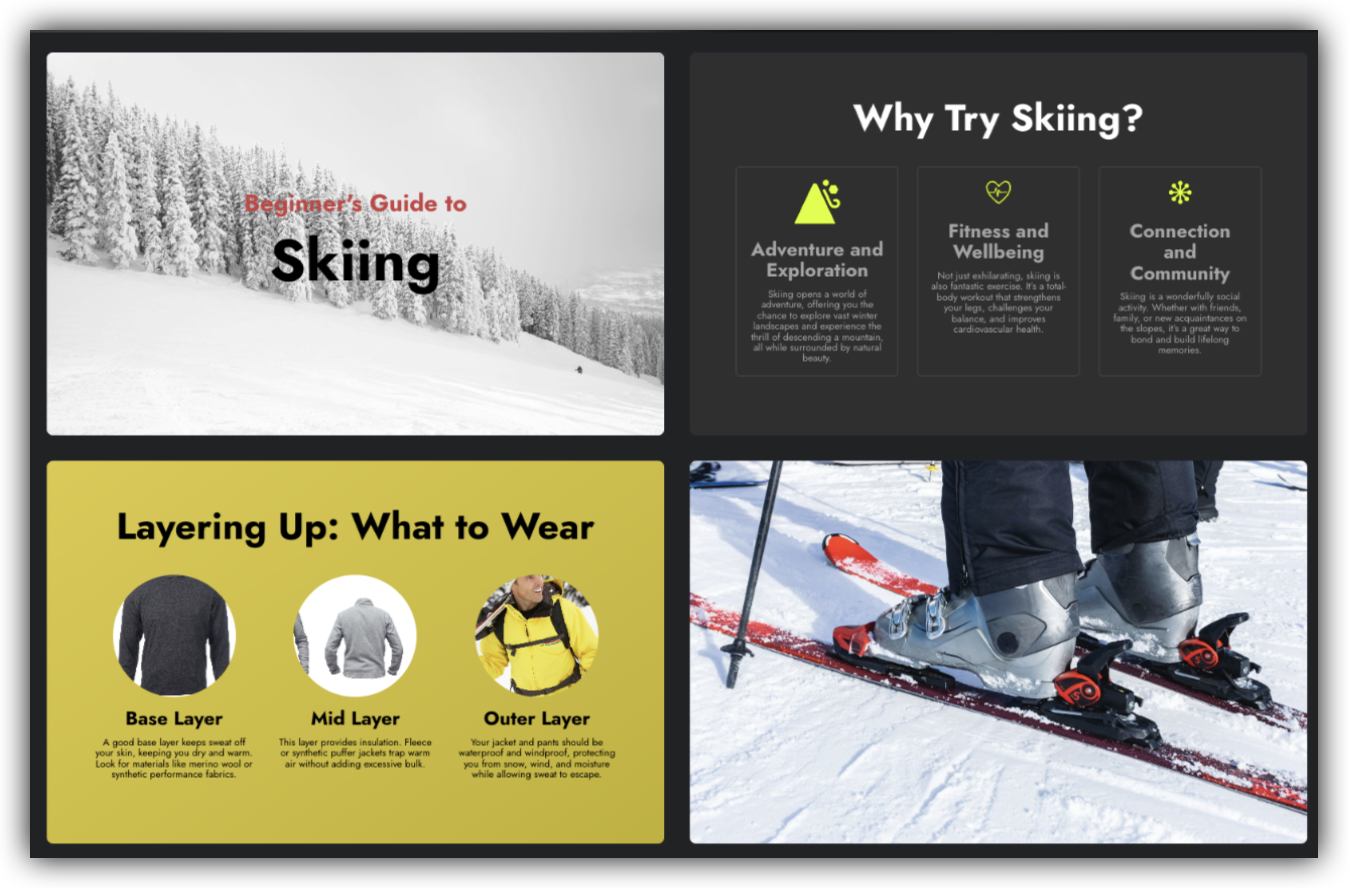
The system defaults to small icons to keep layouts clean and balanced. If a search for matching icons returns no results, a placeholder will appear in that spot so you always know where an icon was intended.
Editing Icons After Generation
Every icon CoAuthor places is a standard Typeset component, which means you can swap it out at any time using the existing Icon Picker.
Step 1: Click on any icon in your generated page to select it.
Step 2: The Icon Picker will open. Search for a different icon and click to apply it.
That's it! Your updated icon will appear in place of the original.
Duplicating Icon Pages to Reuse the Layout
Once CoAuthor generates a page with icons, you can reuse that layout for other content without prompting the AI again. Simply copy and paste the generated page within your document, then update the text and swap the icons as needed using the Icon Picker.
This is a great way to maintain visual consistency across your ebook or slide deck while moving quickly.
Frequently Asked Questions
Q: Why do my icons look different from each other?
A: Icons may look inconsistent if they were added before the style preference feature was introduced, or if the style preference was changed after some icons were already placed. You can replace any icon by clicking it and selecting a new one from the picker — your current style preference will apply to the new selection.
Q: Why am I seeing fewer icon search results than before?
A: Search results are now filtered by style and line weight to ensure visual consistency. If you'd like to see more options, adjust your icon style preference in Document Settings or use the More from this collection button to browse a specific collection.
Q: Can I use a mix of outlined and solid icons in the same document?
A: Your document has a single icon style preference that applies globally, so mixing styles isn't supported through the standard settings. If you need a specific icon that falls outside your current preference, try adjusting the setting temporarily, adding the icon, then switching back.
Q: Does changing my icon style preference update icons I've already placed?
A: No — changing your preference only affects icons added after the change is made. Icons already placed in your document will remain as-is.
Q: Where do Typeset's icons come from?
A: All icons in Typeset come from the Noun Project, one of the largest collections of icons available. The More from this collection feature lets you explore icons within specific Noun Project collections.
Q: How does CoAuthor decide whether to use icons or images?
A: CoAuthor evaluates the type of content being generated. For structured layouts like feature lists, process steps, and benefit highlights, icons tend to be the better visual fit and will be selected automatically. For other content types where a richer visual is more appropriate, CoAuthor may choose an image instead.
Q: What happens if no matching icon is found for my content?
A: If the icon search returns no results, a placeholder will appear in that position. You can click the placeholder to open the Icon Picker and select an icon manually.
Q: Can I remove an icon from a generated card if I don't want it?
A: Yes. Click the icon to select it, then delete it as you would any other component in the Typeset editor.
Q: Will CoAuthor add icons to all generated pages automatically?
A: No — CoAuthor selects icons based on context. It will include icons when the content type is a strong fit (feature cards, process steps, etc.), but not every generated page will include icons. Text-heavy or narrative content is less likely to receive icon treatment.
Q: Can I prompt CoAuthor to generate icon-based layouts specifically?
A: Yes! Being specific in your prompt helps. Phrasing like "create 4 feature cards" or "generate a 3-step process list" signals to CoAuthor that a structured, icon-friendly layout is what you're looking for.
Was this article helpful?
That’s Great!
Thank you for your feedback
Sorry! We couldn't be helpful
Thank you for your feedback
Feedback sent
We appreciate your effort and will try to fix the article